DOCUMENTATION
Fit Image Pro™ is a plugin written using the new UXP interface in Adobe Photoshop, to assist in scaling an image to fit required dimensions. It simplifies the routine, repetitive work required to ensure that your images will show at their best, so it's easier and faster to get the results you want, and it's much harder to make mistakes.
It can be difficult to automate image scaling in Photoshop if you want your process to work for a variety of different aspect ratios, and for both landscape and portrait images.
There's the Fit Image script hidden away under Automate; but that always uses Bicubic resampling, which sometimes gives rather soft results.
Or you can use Image Size, which is fine when you're working manually, but it doesn't provide you any way of saying "Scale my image so that the long edge is exactly 2000 pixels" (for instance), in a way that can be included as a single step in an Action. Yes, you can use a Conditional step in your action to call one of two other actions, depending on whether your image is portrait or landscape. But, believe me, if you make more than a handful of those, you will end up with hundreds of actions and they become a nightmare to maintain.
And that's exactly what Fit Image Pro is designed to address. If nothing else, you can use it to scale images so that the long edge is exactly (for instance) 2000 pixels, and use Preserve Details 2 for resampling.
Get it for that, and then find out what else it can do for you!
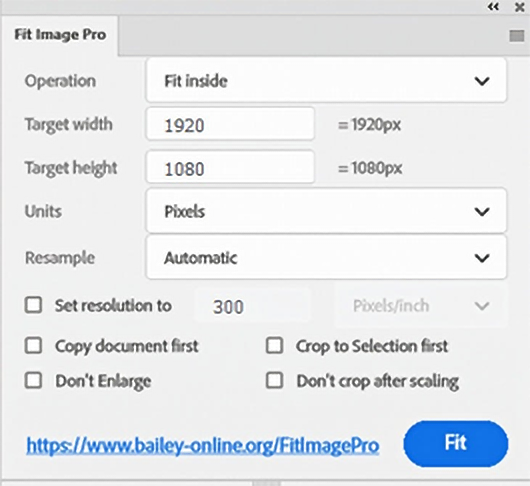
Start by setting the width and height that you want to scale the image to. You might need your images to be 1920px wide by 1020px tall, if you want to fill a standard widescreen computer display or TV. You can set that in pixels directly, or use inches, mm, etc and choose the resolution.
Next, select the operation you want to use:
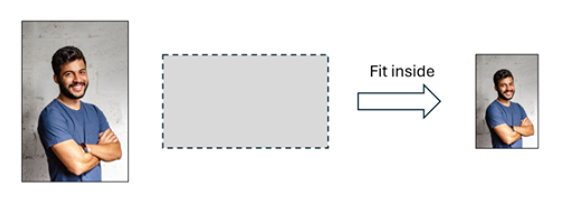
Fit Inside is equivalent to the Fit Image script. It will scale the image so that it will fill the height or width of the target area, depending on the aspect ratio of the source image and the target size.
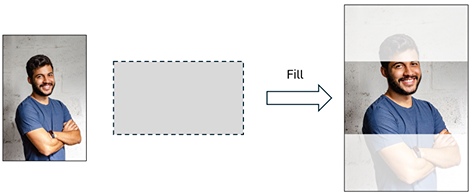
Fill will scale the image without distorting it, so that it covers the whole of the target size. Unless the source image and the target size are exactly the same shape (aspect ratio), some of the image will be outside the target area and will be cropped off. If your goal is to scale the image like that, but not to crop it, turn on ‘Don’t crop after scaling’.
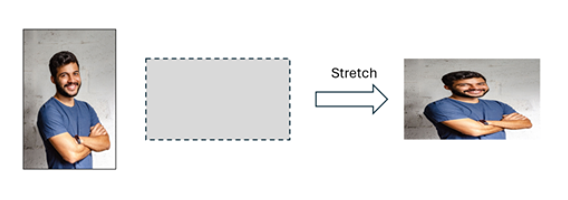
Stretch will distort the image to match the shape of the target size. This is not often useful for photographic images, unless you just need a tiny adjustment.
Fit Width and Fit height scale the image without distortion such that the image width matches the target width, or the image height matches the target height. Just as with Fill, you may wish to tell Fit Image Pro not to crop after scaling.
Don’t scale does exactly as it says; it won’t scale your image. It’s most useful with Crop to Selection first.
You can choose how images are resampled as they are scaled, using the standard resampling methods, including Preserve Details 2.0.
And you can tell the plugin not to enlarge your image. This can be useful if you believe that doing so would reduce the image quality significantly.
If you’ve ever reduced the size of an image (or flattened it, or whatever), and then accidentally saved it, replacing your wonderful, high-resolution file with all your live edits, you are not alone. That’s why Fit Image Pro has an option to copy the source image before scaling it, and why that option is turned on by default.
Crop to Selection first might feel slightly out of place in a scaling plugin, but it’s there for anyone who wants to automate processing of images using Photoshop actions. One use case is that something earlier in the action selects the image subject, and you now want to ensure that that subject is scaled to 400px tall, for instance. Manually cropping to a selection is easy: open the crop tool and choose ‘Selection’ in the menu on the toolbar. But doing the same thing in an action is very tricky; you will normally end up cropping to the bounding box of the selection you used while creating the action, not to the selection in the current image.
Once you’ve set everything up in the plugin panel, just hit Fit and the active document will be processed.
You can see more detail on Fit Image Pro and my other plugins by clicking on the link at the bottom of the plugin panel.
Fit Image Pro v1.0, 9 Jul 2026
Sample image by Italo Melo, from pexels.com
You can choose how images are resampled as they are scaled, using the standard resampling methods, including Preserve Details 2.0.
And you can tell the plugin not to enlarge your image. This can be useful if you believe that doing so would reduce the image quality significantly.
If you’ve ever reduced the size of an image (or flattened it, or whatever), and then accidentally saved it, replacing your wonderful, high-resolution file with all your live edits, you are not alone. That’s why Fit Image Pro has an option to copy the source image before scaling it, and why that option is turned on by default.
Crop to Selection first might feel slightly out of place in a scaling plugin, but it’s there for anyone who wants to automate processing of images using Photoshop actions. One use case is that something earlier in the action selects the image subject, and you now want to ensure that that subject is scaled to 400px tall, for instance. Manually cropping to a selection is easy: open the crop tool and choose ‘Selection’ in the menu on the toolbar. But doing the same thing in an action is very tricky; you will normally end up cropping to the bounding box of the selection you used while creating the action, not to the selection in the current image.
Once you’ve set everything up in the plugin panel, just hit Fit and the active document will be processed.
You can see more detail on Fit Image Pro and my other plugins by clicking on the link at the bottom of the plugin panel.
Fit Image Pro v1.0, 9 Jul 2026
Sample image by Italo Melo, from pexels.com